
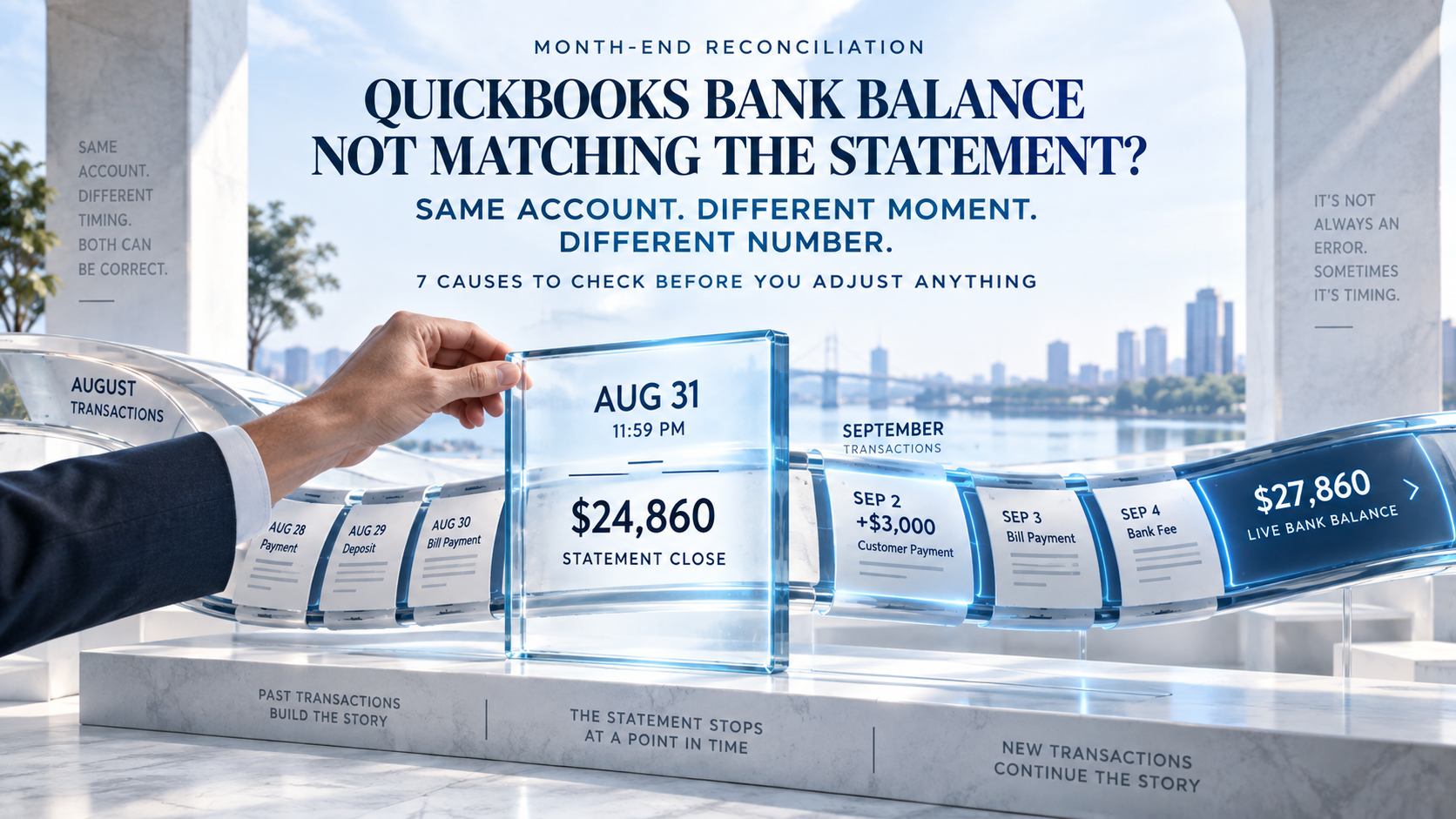
Your bank statement says $24,860, but QuickBooks shows something else. Do not create an adjustment yet.
First, confirm which QuickBooks balance you are viewing and whether both figures use the same closing date. Most differences come from timing, unreviewed bank-feed items, duplicate entries, changed reconciled transactions, or deposits recorded differently from the bank.
The goal is not to make two numbers look equal. It is to identify what caused the difference and correct the underlying record.
Key Takeaways
- Compare the same account and closing date before changing anything.
- The live Bank Balance may not match an older statement.
- Duplicate, missing, or edited transactions require correction.
- Finish the reconciliation only when the unexplained difference reaches zero.
Which QuickBooks Balance Should Match the Statement?
The statement ending balance should be entered in the QuickBooks reconciliation screen for the same closing date. Do not automatically compare it with the live Bank Balance shown on the banking dashboard. That figure may include transactions posted after the statement closed.
You may be looking at three different numbers:
| Balance | What it shows | Month-end meaning |
| Statement ending balance | The bank’s fixed balance on the statement closing date | This is the figure used for reconciliation |
| Bank Balance | The latest balance received through the connected bank feed | It may include newer transactions |
| In QuickBooks balance | Transactions recorded in the QuickBooks account register | It may include valid uncleared payments and deposits |
Suppose the August statement closes at $24,860. On September 2, a $3,000 customer payment clears, and QuickBooks updates the Bank Balance to $27,860.
Both numbers can be correct. They simply belong to different dates.
Start every review with three questions:
- Am I checking the correct bank account?
- Am I using the statement’s closing date?
- Am I comparing the statement with the reconciliation records rather than a newer live balance?
That quick check prevents hours of searching for a difference that does not belong to the month being closed.
Why Accurate Deposit Timing Matters More in 2026
The difference between sending an invoice, receiving payment, and having cleared cash in the bank is not merely technical.
The 2026 Intuit QuickBooks Small Business Late Payments Report found that 59% of businesses had at least some invoices overdue by 30 days or more, up from 47% in the prior year. Businesses with unpaid invoices were owed an average of $17,700. The report also found that 49% of owners said normal payment-processing times created moderate or serious cash-flow gaps.
The report combines Intuit’s quarterly Small Business Insights research with a separate United States business-owner survey, so it is not a Canada-only measure. Its practical lesson still applies to Ontario bookkeeping:
An invoice, a recorded payment, a merchant settlement, and a cleared bank deposit may represent four different points in time.
QuickBooks can show revenue or a customer payment before the money appears as one cleared deposit on the statement. Treating those events as identical can create open-invoice problems, duplicate income, or deposits that never match the bank.
Cause 1: You Are Comparing Different Dates
Date mismatch is the first cause to check because it requires no correction when the underlying records are accurate.
The bank statement stops at a fixed date. Your connected QuickBooks feed keeps moving.
Transactions that clear after month-end may already appear in the current Bank Balance, including:
- Customer deposits
- Supplier payments
- Automatic withdrawals
- Bank fees
- Loan payments
- Account transfers
- Payroll withdrawals
What to check
Open the final bank statement and note its closing date.
Then review the QuickBooks account register only up to that date. Transactions dated or cleared after the statement period should not be forced into the month being reconciled.
Do this: Reconcile August 31 to the August 31 statement.
Not this: Compare the August statement with the bank’s live balance on September 4.
Cause 2: The Bank Feed Has Not Fully Updated
QuickBooks tries to download connected bank and credit-card transactions automatically every 24 hours. You can also update the connection manually. Intuit notes that QuickBooks does not download transactions that the financial institution still marks as pending.
This creates two common situations.
First, your online banking may show cleared activity that QuickBooks has not downloaded yet.
Second, your banking app may show pending purchases that will not appear in QuickBooks until the bank posts them.
Check the connection before changing the books
- Open Bank transactions.
- Select the affected account.
- Review the last update time.
- Select Update.
- Complete any bank-authentication request.
- Compare the refreshed feed with online banking.
- Check whether the missing item is still pending at the bank.
A delayed feed affects what QuickBooks displays. It does not automatically mean a transaction is missing from the accounting register.
You can also review Intuit’s Canadian bank-feed support resources when the account will not refresh.
Cause 3: A Transaction Is Missing or Still Waiting for Review
Downloaded bank activity does not become a complete accounting record merely because it appears on the Bank transactions page.
QuickBooks currently sends downloaded transactions to the Pending tab. You still need to review, match, categorize, post, or exclude them. Intuit also advises matching a downloaded customer receipt to the payment already recorded in QuickBooks rather than automatically creating another deposit.
Commonly missed transactions include:
- Monthly bank charges
- Interest income
- Loan principal and interest
- Credit-card payments
- Electronic transfers
- Returned customer payments
- Merchant-processing fees
- CRA payments or refunds
- Owner withdrawals or contributions
- Pre-authorized supplier payments
How to diagnose a missing item
Search the account register by amount before adding anything.
The transaction may already exist with:
- A different date
- A shortened supplier name
- The wrong bank account
- A rounded amount
- A split between several categories
- A transfer recorded from the other account
- A payment recorded but not matched
Adding the item again without checking can turn one missing-looking transaction into a duplicate.
Cause 4: The Transaction Was Entered Twice
Duplicates often appear when someone records a transaction manually and later posts the downloaded bank item as new.
Here is a common example:
- You enter a $1,475 supplier payment when it is issued.
- The payment clears two days later.
- QuickBooks downloads the $1,475 withdrawal.
- Someone selects Post instead of matching it to the existing payment.
- QuickBooks now contains two withdrawals for one real payment.
The difference often equals one exact transaction amount. Sometimes it equals twice an amount because the duplicate appears on the wrong side of the review.
Intuit confirms that duplicate downloads can occur after transactions are uploaded manually. Its current guidance allows users to exclude confirmed duplicates from the Pending tab.
Before removing a suspected duplicate
Confirm that both entries represent the same real-world transaction.
Check:
- Amount
- Supplier or customer
- Payment reference
- Cheque number
- Bank-posting date
- Original form type
- Account category
- Reconciliation status
Do not remove one entry merely because the amounts match. Two legitimate payments can have the same value.
Cause 5: A Payment or Deposit Has Not Cleared
Outstanding items create valid differences between the QuickBooks register and the statement.
For example, you may record a supplier cheque on August 29. If the supplier deposits it on September 3, QuickBooks reduces the account in August while the August statement does not.
The same timing difference can arise from:
- Outstanding cheques
- Payments still being processed
- Deposits made near month-end
- Weekend transactions
- Electronic transfers between banks
- Merchant settlements
- Card payments awaiting deposit
- Customer payments placed in Undeposited Funds
A real outstanding item should remain uncleared until it appears at the bank.
The warning sign is age.
A cheque that remains outstanding for several months may have been lost, replaced, voided, entered twice, or posted to the wrong account. A deposit in transit that never clears may not be a timing issue at all.
Review old outstanding transactions before carrying them into another month.
Cause 6: Someone Changed a Reconciled Transaction
When the current beginning balance does not equal the previous reconciliation’s ending balance, look backward before touching the current month.
Intuit lists several causes of beginning-balance problems:
- An incorrect original opening balance
- Transactions entered before the opening-balance date
- A reconciled transaction that was edited
- A reconciled transaction that was deleted
- A transaction moved to another account
- A transaction changed from reconciled to uncleared
- A transaction manually reconciled incorrectly
QuickBooks can open a Reconcile Discrepancy Report when it detects that the beginning balance changed. The report helps identify the transaction and the type of change.
Review past changes in this order
- Open the previous reconciliation report.
- Confirm its ending balance.
- Compare that amount with the current beginning balance.
- Open the Reconcile Discrepancy Report.
- Review the transaction history.
- Check who changed the transaction in the Audit Log.
- Correct the source transaction using the bank statement or supporting document.
Intuit warns that removing a reconciled transaction changes the beginning balance of the next reconciliation. Its guidance, updated in August 2026, also recommends consulting an accountant before undoing an entire reconciliation.
Cause 7: Deposits, Fees, or Transfers Were Recorded Differently
A deposit can be correct in total but still fail to match the bank because QuickBooks recorded its components differently.
Suppose five customers pay a combined $6,200. The bank shows one deposit of $6,020 after deducting $180 in processing fees.
QuickBooks may contain:
- Five separate customer payments
- A $6,200 gross deposit
- No processing-fee entry
- One $6,020 downloaded bank transaction
Nothing will match cleanly until the deposit and fee are recorded in a way that reflects what the bank processed.
Intuit’s current Canadian guidance allows several invoice payments to be held in Undeposited Funds and combined into one deposit when the bank combines them. This keeps the customer records intact while producing one statement-matching deposit.
Other recording problems include:
- Recording a transfer as income
- Recording the same transfer as an expense in the other account
- Posting a payment to the wrong chequing account
- Entering the wrong statement ending balance
- Using the wrong statement closing date
- Recording gross merchant receipts when the bank deposits a net amount
- Posting the processing fee twice
- Entering a loan payment entirely as an expense
- Leaving customer payments open after recording the bank deposit
The fix should preserve both sides of the record: what happened with the customer or supplier and what cleared through the bank.
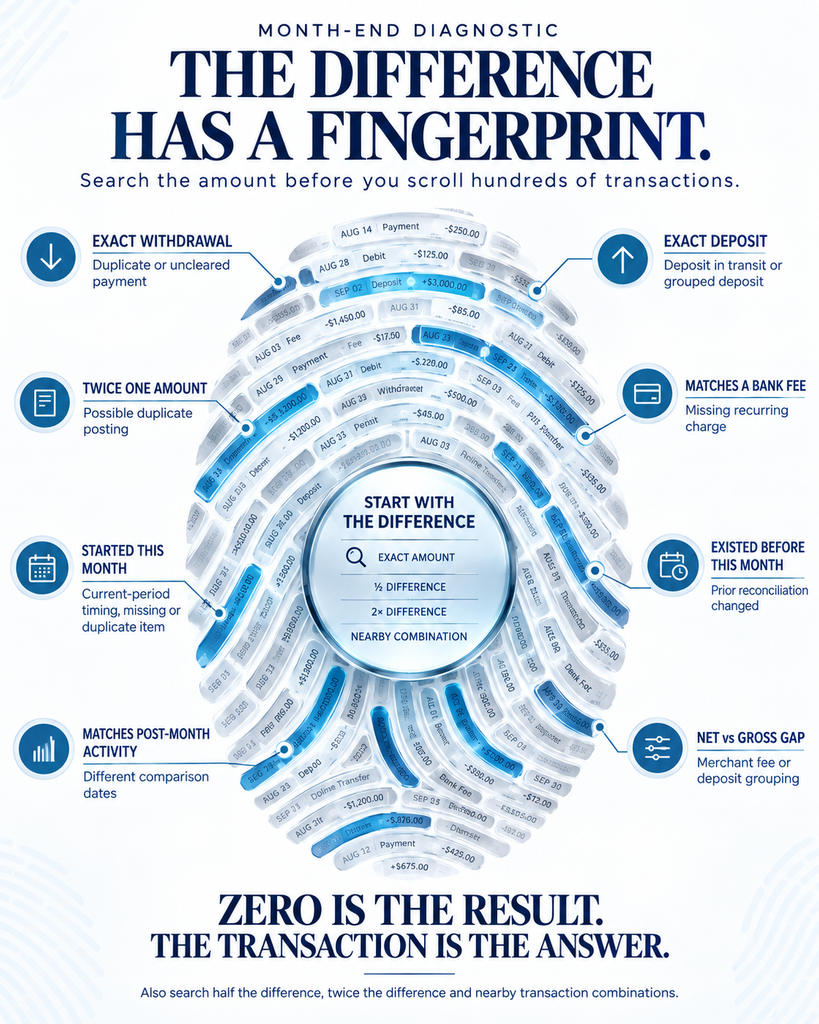
Let the Difference Amount Point to the Cause
The amount is often the best clue.
| Difference pattern | Likely explanation | Check first |
| Exact amount of one withdrawal | Duplicate or uncleared payment | Register and Pending transactions |
| Exact amount of one deposit | Deposit in transit or grouped deposit | Bank Deposit and Undeposited Funds |
| Twice the amount of one item | Duplicate posted on one side | Match and duplicate review |
| Amount equals a bank fee | Missing charge | Bank statement and expense register |
| Difference began this month | Current missing, duplicate, or timing item | Current statement period |
| Difference existed before this month | Changed prior reconciliation | Discrepancy Report |
| Live balance differs by post-month activity | Different comparison dates | Transactions after statement close |
| Small amount repeats monthly | Processing fee, interest, or bank charge | Recurring bank-created items |
| Transfer difference appears in two accounts | Transfer entered inconsistently | Both bank registers |
| Difference matches net versus gross deposit | Merchant fee or deposit grouping | Settlement report |
Avoid scrolling randomly through hundreds of transactions.
Start with the difference. Search for that amount, half of it, twice it, or a combination of nearby transactions.
Ontario Month-End Example
Consider a London, Ontario consulting company closing its August books.
The bank statement shows an August 31 ending balance of $31,940.
On September 2, QuickBooks shows:
- Bank Balance: $36,740
- In QuickBooks balance: $31,440
The owner sees two differences and assumes the bank feed is broken.
Here is what the review finds.
Difference one: $4,800
A customer payment cleared on September 1.
That payment explains why the current Bank Balance is $4,800 higher than the August statement. No August correction is needed because the transaction belongs after the statement date.
Difference two: $500
The account register contains two entries for the same software payment:
- A manually entered $500 expense
- A $500 downloaded transaction posted as another expense
The duplicate reduces the In QuickBooks balance by an extra $500.
After the duplicate is removed correctly, the August reconciliation reaches zero.
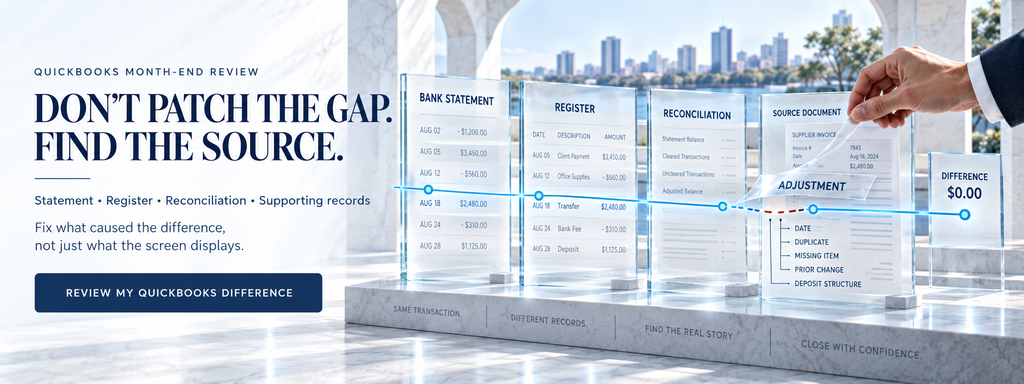
The statement, account register, reconciliation report, and supporting records now agree.
This example is illustrative, but the pattern is common. One visible mismatch can contain both a valid timing difference and a real bookkeeping error.

What Should You Check Before Closing the Month?
Use the following sequence.
1. Save the final statement
Work from the bank’s issued PDF or official statement.
Do not rely only on a changing online balance.
2. Confirm the account and period
Check the account number, statement opening date, closing date, beginning balance, and ending balance.
3. Refresh the bank feed
Review the last update time and complete any authentication request.
Remember that QuickBooks does not download pending bank transactions.
4. Clear the Pending queue
Match existing transactions first.
Post new transactions only after checking the register. Exclude an item only when you can confirm it is not a valid business transaction.
5. Review the beginning balance
It should agree with the previous reconciliation.
When it does not, inspect the discrepancy report before working on the current month.
6. Match the statement line by line
Check:
- Deposits
- Withdrawals
- Bank fees
- Interest
- Transfers
- Merchant settlements
- Loan payments
- Returned payments
7. Stop when the records explain the result
Intuit’s current Canadian instruction is direct: “Once the Difference is CAD $0.00, select Finish now, then select Done.”
Zero should be the result of finding the real transactions, not posting a convenient adjustment.
Still carrying an unexplained difference?
TaxRecon’s Bookkeeping and Financial Management service can review the bank statement, QuickBooks register, Pending transactions, previous reconciliation, and accounting entries together. The focus is to identify where the records stopped agreeing and what needs correction. TaxRecon supports this work as part of its connected Canadian accounting and bookkeeping services.
Common Mistakes That Make the Problem Worse
Posting a journal entry before finding the cause
A journal entry can make the reconciliation screen show zero while leaving the actual error untouched.
That can misstate income, expenses, GST/HST, shareholder balances, or accounts receivable.
Do this: Correct the source transaction.
Not this: Post the unexplained difference to bank fees, miscellaneous expense, or a suspense account.
Deleting a reconciled transaction
Removing a reconciled item changes the next period’s beginning balance. It can also affect earlier financial statements and tax records.
Treating the bank feed as the complete bookkeeping record
The bank feed supplies transaction data. It does not decide whether an amount represents revenue, a loan, a transfer, GST/HST, an owner contribution, or a customer payment.
Recording an invoice as cash received
An invoice records an amount owed by the customer. It does not increase the bank balance.
When the customer pays, record the payment. When the funds settle, match the bank deposit.
Changing transaction dates to force a match
The accounting date should reflect the supporting record and the event being recorded. Changing dates without understanding the payment or deposit can push income and expenses into the wrong reporting period.
What Records Should You Gather?
You can usually diagnose the difference with a focused set of records:
- Bank statement for the month
- Prior reconciliation report
- QuickBooks account register
- Reconcile Discrepancy Report
- Audit Log
- Bank transactions Pending list
- Excluded transaction list
- Merchant settlement reports
- Deposit slips
- Transfer confirmations
- Loan statements
- Returned-payment notices
- Customer payment records
- Bank-fee details
- Notes supporting old outstanding items
Keep the final reconciliation report with the month-end records.
That report should support the cash figure shown on the balance sheet.
When Should You Speak With a Bookkeeper or Accountant?
Professional review becomes useful when the difference extends beyond one obvious transaction.
Consider getting help when:
- Several months remain unreconciled
- The beginning balance changed
- Transactions were deleted from prior periods
- The discrepancy report contains several changes
- Old outstanding items cannot be explained
- Personal and business transactions are mixed
- Merchant deposits do not agree with customer payments
- GST/HST returns used unreconciled figures
- Loan or credit-card accounts also differ
- A reconciliation adjustment already exists
- The balance-sheet bank amount cannot be supported
- You are considering undoing several completed reconciliations
A bank difference can affect more than cash. It may change revenue, expenses, receivables, GST/HST, loans, shareholder accounts, and taxable income.
TaxRecon can connect the bank cleanup with monthly bookkeeping and financial management and, where required, tax filing and CRA compliance.
Final Thoughts
A different QuickBooks balance does not automatically mean money is missing.
The two figures may belong to different dates. A payment may still be outstanding. A customer deposit may not have settled. Or the books may contain a missing, duplicate, changed, or incorrectly recorded transaction.
When your QuickBooks bank balance is not matching, start with the account, statement date, and type of balance. Then use the exact difference to locate the transaction behind it.
Do not force the numbers together.
Make the bank statement, QuickBooks register, reconciliation report, and supporting documents explain the same financial picture.
Need Help Finding Where the Difference Started?
Your books do not need to be perfectly organized before you contact TaxRecon.
Bring the bank statements, QuickBooks account register, reconciliation reports, merchant settlement records, and any notes about changed or deleted transactions. TaxRecon can help clarify what needs attention and what practical correction should come next.
Request a QuickBooks bookkeeping review from TaxRecon.
Frequently Asked Questions
Why does QuickBooks show a different balance from my bank statement?
QuickBooks may show a newer bank-feed balance than the statement’s closing balance. The difference can also come from uncleared payments, deposits in transit, pending bank transactions, missing entries, duplicates, or changes to transactions from a previously reconciled period.
Should the Bank Balance and In QuickBooks balance always match?
Not at every moment. The Bank Balance comes from the connected financial institution, while the In QuickBooks balance comes from the account register. Valid uncleared items, pending transactions, delayed bank updates, or transactions posted after the statement date can create a temporary difference.
How do I find a deleted or changed reconciled transaction?
Compare the current beginning balance with the prior reconciliation report, then open the Reconcile Discrepancy Report. Review the change type and transaction history. QuickBooks may identify items that were edited, deleted, moved, manually reconciled, or changed from reconciled to uncleared.
Should I create a journal entry to fix the bank balance?
Not before identifying the cause. A journal entry may hide a missing, duplicate, or changed transaction without correcting it. Review the statement, account register, bank feed, discrepancy report, deposits, transfers, and outstanding items first. Post an adjustment only when the supporting records justify it.
Can TaxRecon fix old QuickBooks reconciliation problems?
TaxRecon can review the available statements, account registers, bank-feed activity, previous reconciliations, and related bookkeeping records to identify where the difference began. The work required depends on the number of affected accounts, months, and transactions. Request a bookkeeping review to discuss the records currently available.